How to Transfer PS1 Saves Between Emulators
Switching emulators should not mean starting your PS1 games again. With MemcardRex you open the old card and the new one side by side, copy the saves you want, and save the result in the format the new emulator expects. This guide covers where each emulator keeps its cards and how to move saves without breaking either card.
 MemcardRex.com Editorial TeamIndependent MemcardRex guides
Updated Published 3 min read
MemcardRex.com Editorial TeamIndependent MemcardRex guides
Updated Published 3 min read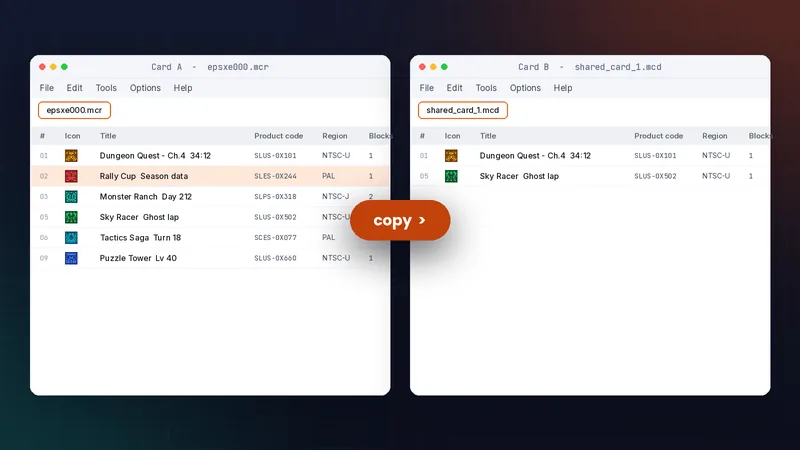
Find your memory card files
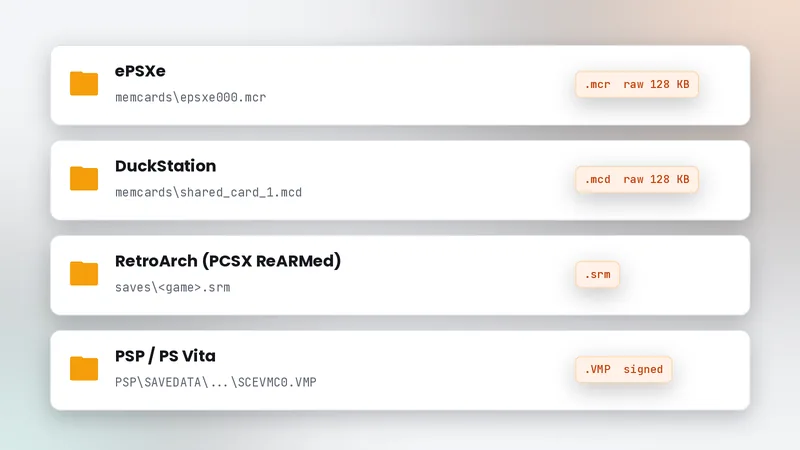
ePSXe and DuckStation
ePSXe stores cards in its memcards folder as epsxe000.mcr (slot 1) and epsxe001.mcr (slot 2). DuckStation keeps shared_card_1.mcd in its memcards folder by default, and can also use one card per game. If per-game cards are enabled, look for files named after the game or its serial in the same folder, and check the emulator's memory card settings to confirm which mode it uses.
RetroArch and PSP
RetroArch PS1 cores such as PCSX ReARMed save the first card as an .srm file named after the game in the saves folder. A PSP keeps POPS virtual cards as .VMP files inside the game's SAVEDATA folder.
Copy saves between two cards
Open both cards
Close the emulators first, then open both card files in MemcardRex. Each appears in its own tab.
Copy and paste
Select a save in the source tab, copy it, switch to the destination tab and paste. The destination needs as many free blocks as the save uses. The block count is shown in the save list, so check it before pasting. Some games use several blocks for one save, and a card with only one free block cannot take a two-block save even if it shows space.
Merge or replace?
Merging cards
Merging keeps everything already on the destination card and adds the saves you copy. It is the safe default when both emulators have progress you care about. If both cards contain a save for the same game, decide which one to keep before you paste, because having two saves for one game on a card can confuse you later, even if the game itself lets you choose between them.
Replacing the whole card
If the destination is empty, it is quicker to convert the whole source card with Save As in the destination format, as explained in converting card formats.
Save in the right format and place
Match the file name
Save the result under the exact name and folder the emulator expects, for example shared_card_1.mcd for DuckStation's shared card.
Per-game cards
If your emulator uses one card per game, create a card for that game and paste only its save into it.
Test and troubleshoot
Load the save in game
Start the emulator, open the game's load menu and check that the save is listed and loads. Then play for a minute and save again. That confirms the emulator can write to the card as well as read it, which catches file permission problems and wrong file names early.
When the save does not appear
Check the region: a PAL save will not appear in an NTSC-U copy of the game. If the card looks garbled, it was probably opened in the wrong format. See fixing common MemcardRex errors.
Frequently asked questions
Do I need to close the emulator first?
Yes. An emulator may write its card when it exits, overwriting your changes. Close it before editing the card in MemcardRex.
Can I move saves from a real card to an emulator?
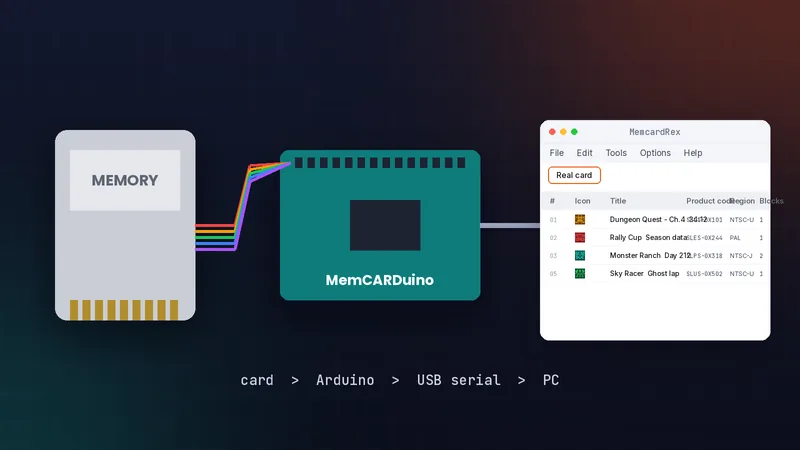
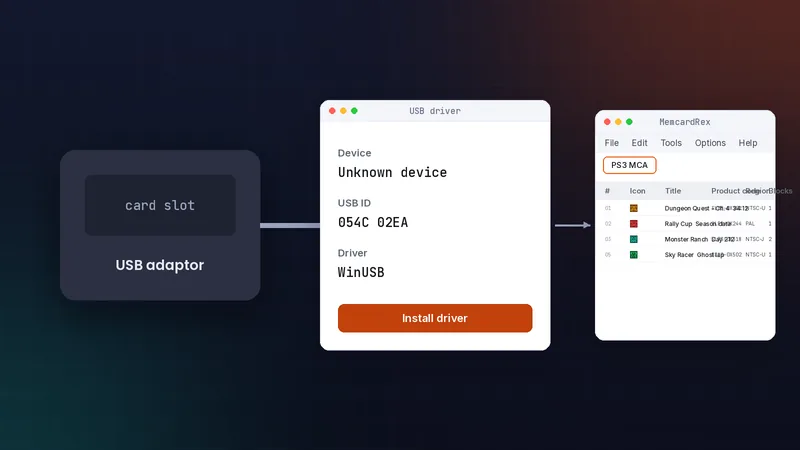
Yes. Read the real card into MemcardRex with a supported reader, save it as a card file, then copy saves across as usual.
Why is my copied save missing in the game?
Most often the save is from another region or version of the game, so its product code differs from your disc.
Written and checked by the MemcardRex.com Editorial Team against the latest MemcardRex builds and the project README on GitHub. MemcardRex.com is independent from the MemcardRex developers.