How to Download and Install MemcardRex on Windows
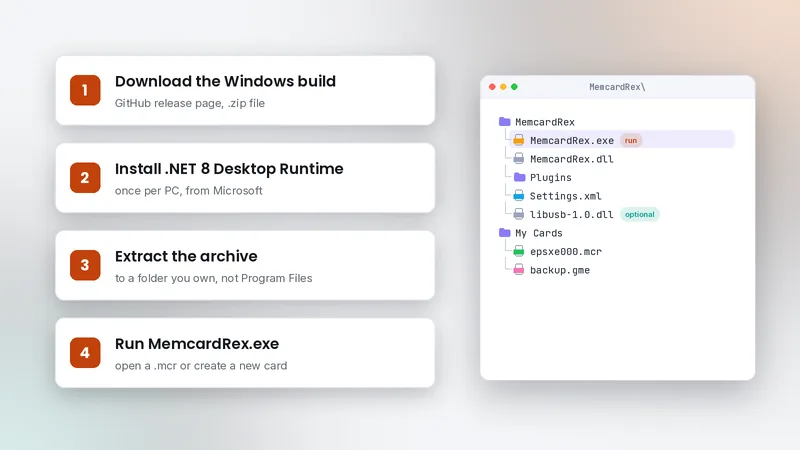
MemcardRex runs on Windows 10 and 11 once the .NET 8 runtime is in place. This guide walks through the whole setup: checking your system, installing .NET 8, downloading the official build from GitHub, extracting it to the right folder, getting past SmartScreen safely and opening your first PS1 memory card.
 MemcardRex.com Editorial TeamIndependent MemcardRex guides
Updated Published 4 min read
MemcardRex.com Editorial TeamIndependent MemcardRex guides
Updated Published 4 min read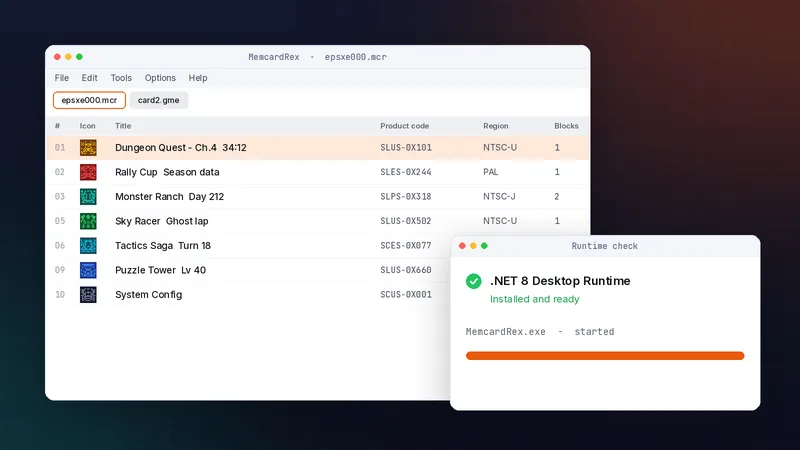
Check your system first
Windows version
You need 64-bit Windows 10 or Windows 11. Open Settings, then System, then About, and look at "System type". If it says 64-bit, you are ready. If it says 32-bit, you are on an older installation that the current builds do not target, so use a 64-bit system instead. Disk space is not a concern: the program itself is small, and even a large collection of memory card backups only takes a few megabytes, because each card is 128 KB.
The .NET 8 requirement
Current MemcardRex builds are built on .NET 8, which the project README lists as its only requirement. Without the .NET 8 Desktop Runtime the program will not start, and Windows may show a runtime prompt instead.
Install the .NET 8 Desktop Runtime
Pick the right package
On Microsoft's .NET 8 download page, choose the .NET Desktop Runtime for x64. The plain ".NET Runtime" does not include the desktop libraries, and the SDK is only needed if you want to build from source.
Run the installer
The installer takes a minute and needs no restart. You only do this once per PC; future MemcardRex builds use the same runtime. Windows Update and Microsoft's installers will keep the .NET 8 runtime patched with security fixes, so you do not need to reinstall it when you update MemcardRex. If you already have other .NET versions installed, that is fine: they sit side by side, and MemcardRex picks the .NET 8 runtime it needs.
Download the official build
Use the GitHub release
Open the MemcardRex repository and follow the latest Windows release link. Download the archive from the Assets list. Our download page links to the same release.
Check what you downloaded
Scan the archive with your antivirus before extracting it. Antivirus tools sometimes flag small, unsigned utilities as suspicious simply because few people run them. A clean scan of the file from the official release is what matters; a file from a re-upload site with a different size or name is a reason to stop. The repository was archived in July 2026, so also keep a copy of the archive in a backup folder.
Extract and run MemcardRex
Choose a folder you own
Extract the archive to a folder such as Documents\MemcardRex. Avoid Program Files, where Windows can stop the program from saving its settings.
Get past SmartScreen safely
Because the program is not code-signed by a large publisher, SmartScreen may warn about an unrecognised app. If the file came from the GitHub release, choose More info, then Run anyway. Never do this for a file you found anywhere other than the official release, and do not run any 'setup' or 'installer' that claims to install MemcardRex, because the official Windows build is a plain archive that you extract and run.
Open your first memory card
Find your emulator's card
ePSXe keeps cards in its memcards folder as epsxe000.mcr and epsxe001.mcr. DuckStation uses memcards\shared_card_1.mcd by default. Copy the card somewhere safe before opening it. Close the emulator first, because some emulators write the card when they exit and would overwrite any changes you make. A simple habit is to keep a dated backup folder, such as Backups\2026-10-03, and copy every card into it before an editing session.
Read the save list
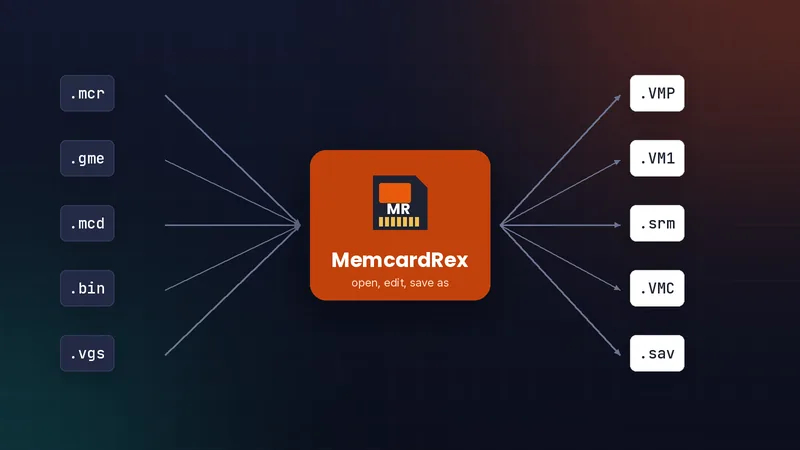
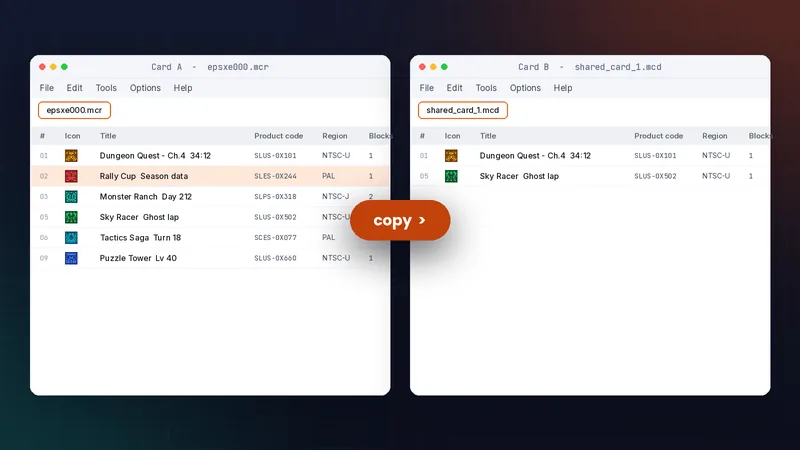
Use File, then Open. Each save appears with its slot number, icon, title, product code, region and the blocks it uses. From here you can copy saves to another card or convert the card to another format.
Next step
If the program does not open, the cause is nearly always the .NET runtime. See how to fix common MemcardRex errors.
Frequently asked questions
Do I need the .NET SDK to run MemcardRex?
No. The .NET 8 Desktop Runtime is enough to run it. The SDK is only needed to build MemcardRex from source, which is how the Linux version is used.
Does MemcardRex need administrator rights?
Not normally. Extract it to a folder you own and run it as a regular user. Administrator rights are only needed to install the .NET runtime or USB drivers.
Can I run MemcardRex on 32-bit Windows?
Use the 64-bit setup this guide describes. 32-bit Windows is uncommon today and is not what the current builds target.
Written and checked by the MemcardRex.com Editorial Team against the latest MemcardRex builds and the project README on GitHub. MemcardRex.com is independent from the MemcardRex developers.