How to Use the PS3 Memory Card Adaptor with MemcardRex
Sony's PS3 Memory Card Adaptor was made to copy PS1 saves to a PlayStation 3, but with the right driver it also works on a Windows PC. MemcardRex supports it directly. This guide shows how to install the WinUSB driver for the adaptor, read and write cards, use LibUSB if you need it, and solve the usual problems.
 MemcardRex.com Editorial TeamIndependent MemcardRex guides
Updated Published 3 min read
MemcardRex.com Editorial TeamIndependent MemcardRex guides
Updated Published 3 min read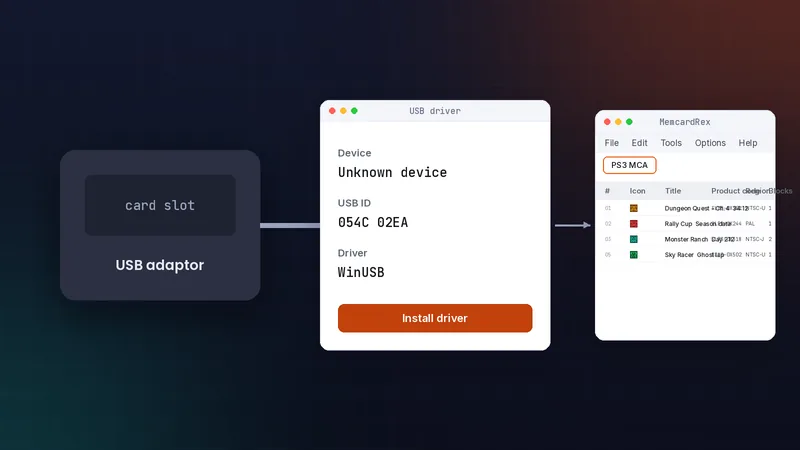
What the adaptor does
An official USB card reader
The adaptor is a small USB device with a PS1 memory card slot. MemcardRex can read, write and format PS1 cards through it once Windows has a suitable driver.
Why a driver is needed
Windows has no built-in driver for the adaptor and shows it as an unknown device. Installing the generic WinUSB driver lets MemcardRex talk to it. The driver only affects how your PC communicates with the adaptor. It does not modify the adaptor, so it continues to work with a PlayStation 3 afterwards.
Install the WinUSB driver
Use a USB driver tool
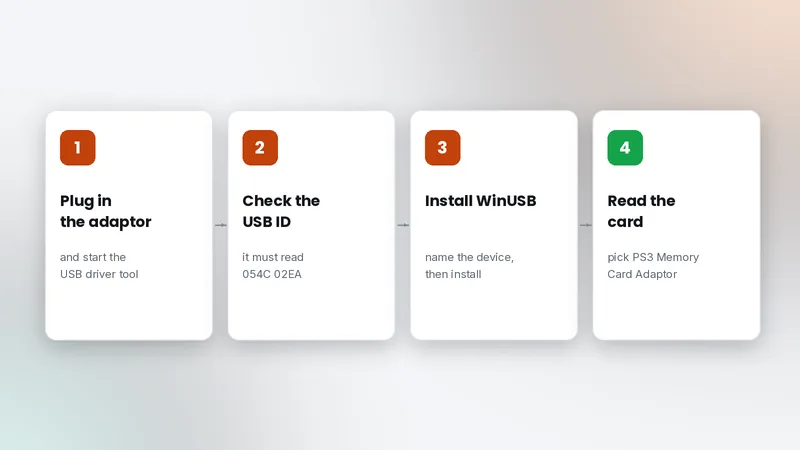
The README describes using Zadig, a free USB driver installer. Plug in the adaptor and start the tool; it lists the adaptor as an "Unknown Device".
Check the USB ID and install
Confirm the USB ID is 054C 02EA. Tick Edit, rename the device "PS3 Memory Card Adaptor", select WinUSB, and click Install Driver. It takes about 30 seconds. When it finishes, the tool reports that the driver was installed successfully. You do not need to restart Windows, but restart MemcardRex if it was already open so it picks up the device.
Read and write cards
Select the adaptor
Insert a card, open MemcardRex, and choose the PS3 Memory Card Adaptor as the hardware interface in Options, then Preferences.
Back up first
Read the card and save it as a .mcr file before you write or format anything. The adaptor can also format cards, which permanently erases them, so keep backups of anything you might want later. A formatted card is useful when you want a clean card for a console. You can then convert it or copy saves to an emulator.
LibUSB instead of WinUSB
When you might need it
Most people only need WinUSB. If your setup requires LibUSB, the README says to place libusb-1.0.dll in the MemcardRex folder (2.0 RC1 and later).
Keep one driver approach
Use the driver type your setup needs and do not keep switching; switching drivers back and forth is a common cause of "device not found". If you do change driver type, unplug the adaptor, reinstall the driver for the correct USB ID, plug it back in and restart MemcardRex.
Troubleshooting the adaptor
Device not found
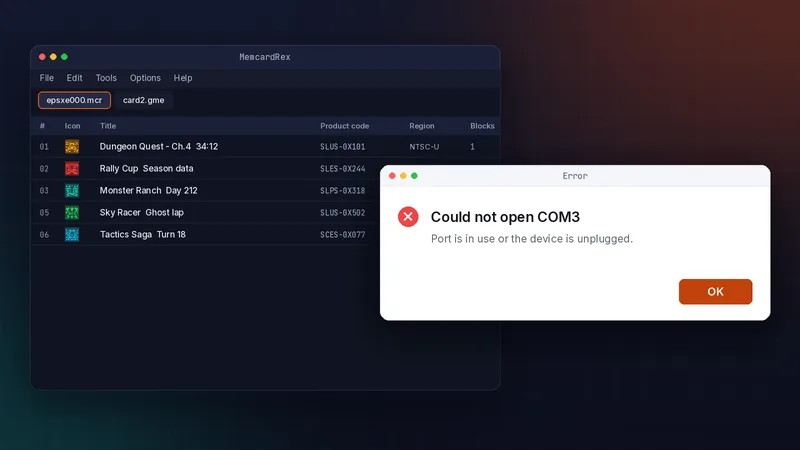
Make sure the USB ID really is 054C 02EA, that WinUSB was installed for it, and restart MemcardRex after installing the driver.
Card reads fail
Reseat the card, try another USB port without a hub, and test with a second card to rule out a faulty one. More fixes are in our troubleshooting guide.
Frequently asked questions
Does the PS3 adaptor work on Mac or Linux?
This guide covers Windows, where the README describes the WinUSB setup. Support on other systems depends on their USB drivers, so test before relying on it.
Will installing WinUSB stop the adaptor working on a PS3?
No. The driver only changes how your Windows PC talks to the adaptor. The adaptor itself is unchanged.
What USB ID should the adaptor show?
The PS3 Memory Card Adaptor shows USB ID 054C 02EA. Install the driver only for a device with that ID.
Written and checked by the MemcardRex.com Editorial Team against the latest MemcardRex builds and the project README on GitHub. MemcardRex.com is independent from the MemcardRex developers.