How to Read Real PS1 Memory Cards with MemcardRex
Original PS1 memory cards are decades old, and the saves on them will not last forever. MemcardRex can read and write real cards through several kinds of hardware, from the classic DexDrive to an Arduino running MemCARDuino. This guide explains each option, how to set the COM port, and how to back up and restore a card safely.
 MemcardRex.com Editorial TeamIndependent MemcardRex guides
Updated Published 3 min read
MemcardRex.com Editorial TeamIndependent MemcardRex guides
Updated Published 3 min read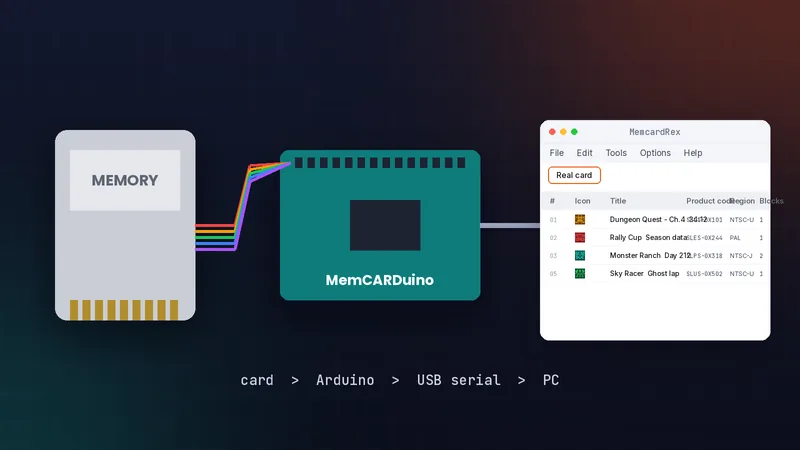
Choose your hardware
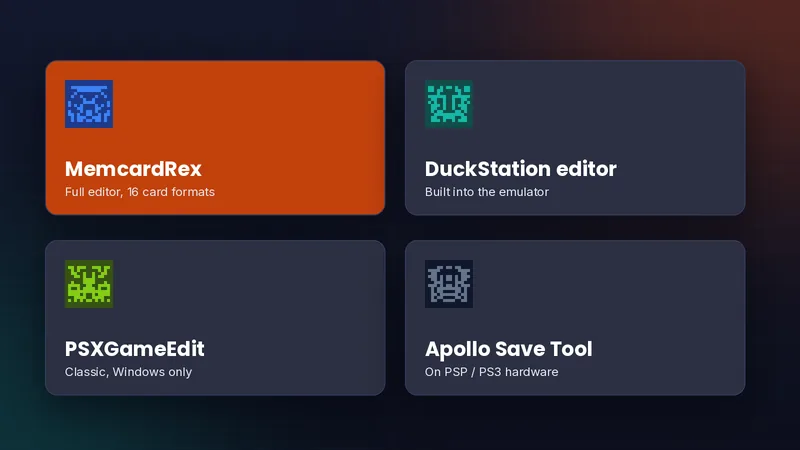
DexDrive
The original PC memory card reader. It works on a native COM port or through a USB adapter. The README recommends connecting its power cord, because some cards are not detected without it.
MemCARDuino
Open-source firmware for Arduino boards that turns a cheap board and a card socket into a reader over USB serial. It is the most common choice today. Building one needs a compatible Arduino board, a way to connect to the card's pins, and the MemCARDuino firmware flashed from its GitHub project. Many people buy ready-made adapters, which removes the soldering.
PS1CardLink and Unirom
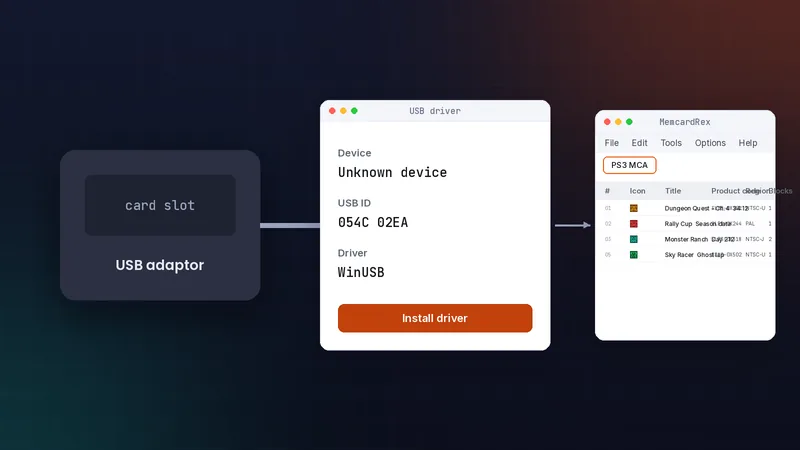
Both run on a real PlayStation or PSone, turning the console into the reader. They need an official or home-made TTL serial cable. The PS3 Memory Card Adaptor is covered in its own guide.
Connect and configure
Find the COM port
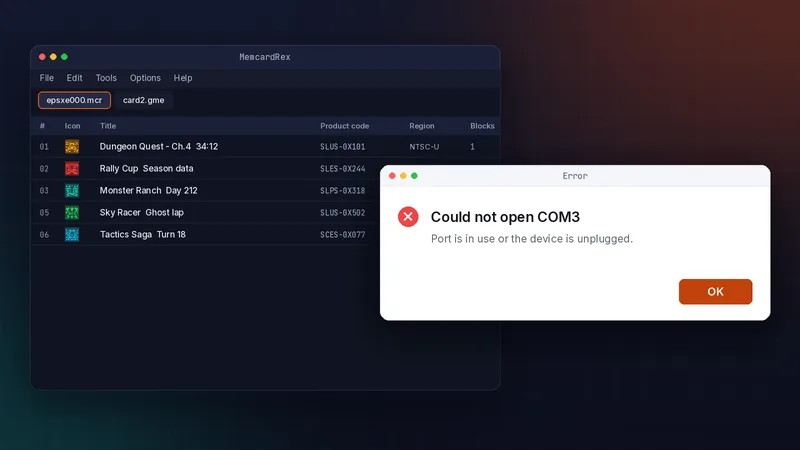
Plug in the reader and open Device Manager. Under Ports (COM and LPT) you will see its port, such as COM3.
Set MemcardRex preferences
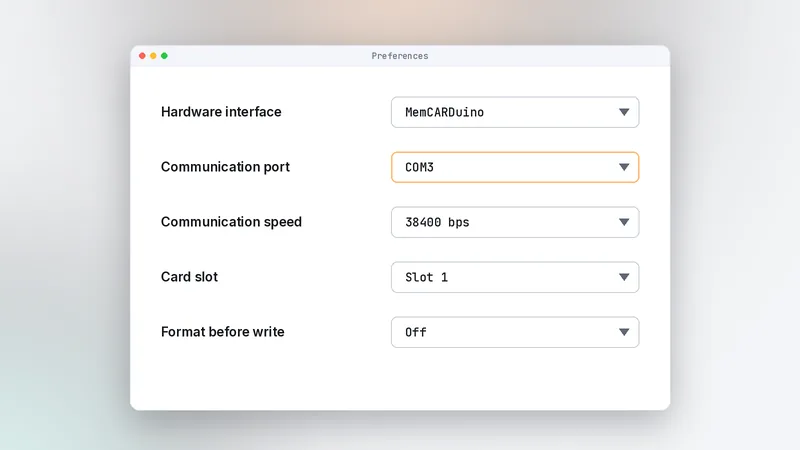
In MemcardRex, open Options, then Preferences. Choose your hardware interface and the matching COM port, then confirm. If the port number changes when you plug the reader into a different USB socket, update it here as well. Using the same USB port each time keeps the number stable.
Back up a card
Read the card
Insert the card, then use the read command for your hardware. MemcardRex reads the card frame by frame into a new tab. A full card is 128 KB, so reading takes a short while depending on the interface. Leave the card and cable untouched until it finishes; moving it mid-read can produce a corrupted copy.
Save it immediately
Save the result as a .mcr file before doing anything else. That file is your backup, and you can convert it to other formats later. Read the card twice and compare the two files if the saves matter to you. Identical results mean the reader and contacts are working reliably.
Write saves back to a card
Prepare the card in a tab
Copy the saves you want into a card tab, or open a backup you made earlier.
Write and verify
Write the tab to the physical card, then read the card again and compare the save list. Test it in a console if you can. Writing replaces what is on the card, so double-check that you are writing the right tab to the right card. Label physical cards if you work with several at once.
Troubleshooting hardware
Card not detected
Check the COM port, reseat the card, and power the DexDrive. For a stuck DexDrive, unplug power and the cable, then reconnect everything.
Linux permission errors
On Linux, add your user to the dialout group so MemcardRex can open serial ports without root. See MemcardRex on macOS and Linux.
Frequently asked questions
Which reader should I buy today?
An Arduino with MemCARDuino is usually the easiest and cheapest option. A DexDrive works but is old and needs its power cord for some cards.
Can reading a card damage it?
Reading is safe. Writing replaces data, so always save a backup .mcr file before you write anything to a physical card.
Can MemcardRex talk to a reader over the network?
Yes. The README notes it can use a serial port bridge such as esp-link, which fits inside a PSone for PS1CardLink setups.
Written and checked by the MemcardRex.com Editorial Team against the latest MemcardRex builds and the project README on GitHub. MemcardRex.com is independent from the MemcardRex developers.